Manage Categories
Categories define one of the main merchandise hierarchies in IMS. A Category can stand alone or contain one or more Sub Categories. Item records reference this hierarchy, and the same values become criteria and Group By dimensions in sales, purchasing and sell-through reporting.
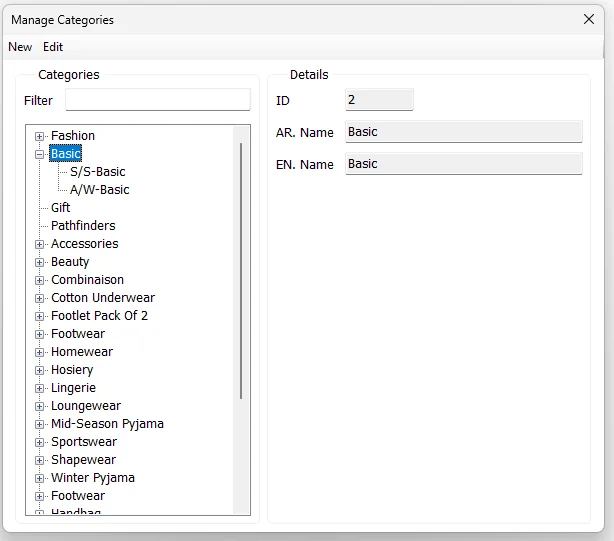
Category and Sub Category hierarchy
The tree on the left represents the hierarchy:
| Level | Meaning |
|---|---|
| Category | Top-level merchandise category. |
| Sub Category | Child classification belonging to a Category. |
Selecting a parent Category shows ID, Arabic Name and English Name. Selecting a Sub Category also exposes its Parent ID, which identifies the Category it belongs to.
Add a Category or Sub Category
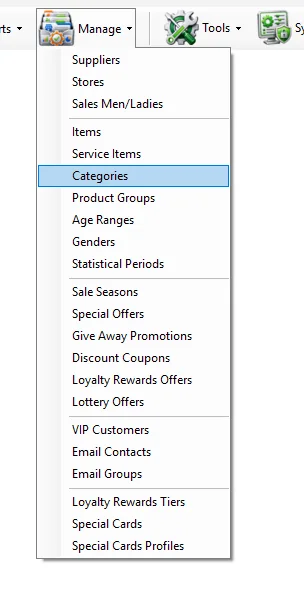
- Select Manage → Categories.
- Click New.
- Enter a unique ID and the required EN. Name. Enter the Arabic name when applicable.
- For a Sub Category, enter/select the required Parent ID.
- Click Save.
If Parent ID is blank, IMS saves a top-level Category. When a Parent ID is supplied, IMS saves the record as a Sub Category beneath that Category.
Edit or move a classification
Select a Category/Sub Category and click Edit. Names can be changed, and the Parent ID can be used to change the hierarchy. When a classification is moved between the parent and child level, IMS also updates the related item classification references so existing Items remain aligned with the master hierarchy.
Relationship with Items
Manage → Items stores both Category and Sub Category. Changing Category on an Item resets the Sub Category so the child selection always belongs to the selected parent Category.