
Search
Review every size/color in a style
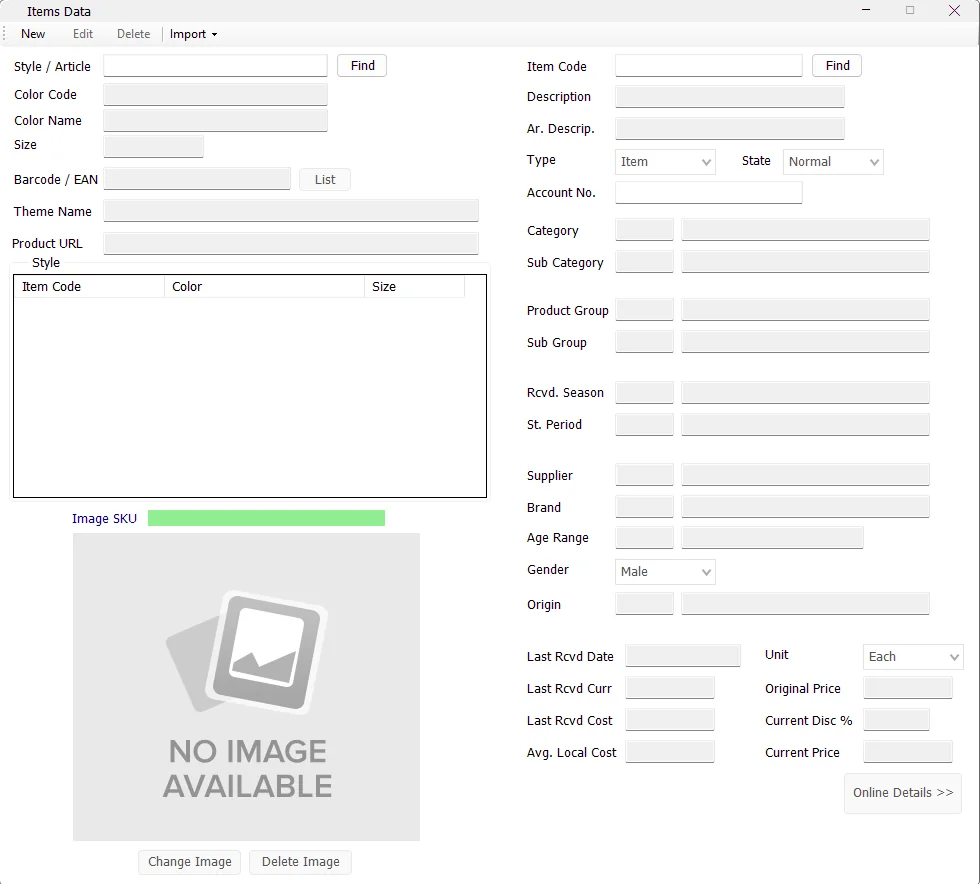
Find the Style and use the Style grid to switch between individual Item Codes.
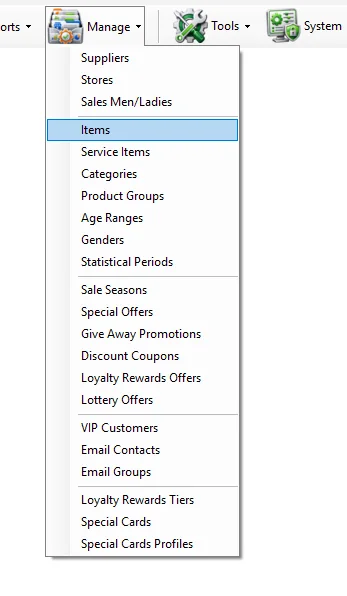
Manage Items is the central merchandise master in IMS. It connects each Item Code to its Style/Article, Color, Size, barcode, descriptions, merchandise hierarchy, supplier and brand, demographic classifications, origin, pricing, online information and product image. These fields are reused across Sales, Inventory, Purchasing, Sell Through and Main Sales reporting.
| Search | Behavior |
|---|---|
| Style / Article → Find | Finds the style and loads its Item Code / Color / Size variants into the Style grid. |
| Item Code → Find | Finds the exact Item Code and also loads the other variants belonging to the same Style. |
| Style grid | Select another Item Code in the grid to switch the details panel to that Color/Size variant. |
| Field | Meaning |
|---|---|
| Style / Article | The product style/article that groups related Color/Size Item Codes. |
| Color Code | The merchandise color code. |
| Color Name | Readable color description associated with the color code. |
| Size | The item's size or size code. |
| Barcode / EAN | The item's primary barcode. |
| List | Opens the additional-barcode list for the selected Item Code when secondary barcodes exist. |
| Theme Name | Optional merchandise Theme classification used by supported item and reporting workflows. |
| Product URL | Online/product URL stored for the Style/Color SKU. |
| Image SKU | IMS builds the image key as Style_ColorCode. |
| Field | Purpose |
|---|---|
| Item Code | Unique IMS item identifier. |
| Description | English item description. |
| Ar. Descrip. | Arabic item description. |
| Type | Classifies the record as an Item or Service. |
| State | Current IMS item state, such as Normal, Sale or Outlet according to the configured item-state master. |
| Account No. | Financial/account mapping used where the item type and financial workflow require it. |
The item master stores the classifications that later become criteria and Group By dimensions in IMS reports.
| Field | Relationship |
|---|---|
| Category | Main merchandise category. |
| Sub Category | Subcategory under the selected Category. |
| Product Group | Main product group. |
| Sub Group | Subgroup under the selected Product Group. |
| Rcvd. Season | Received-season / received statistical-period classification associated with the item. |
| St. Period | Statistical/selling period displayed for the item and used by supported reporting. |
| Supplier | Supplier master assigned to the item. |
| Brand | Brand under the selected Supplier. |
| Age Range | Age classification used by merchandise analysis. |
| Gender | Gender classification used by merchandise analysis. |
| Origin | Country of origin. |
Several classifications are hierarchical. Changing the main Category resets the Sub Category, changing Product Group resets Sub Group, and changing Supplier resets Brand so the dependent field remains consistent with its parent master.
The lower-right receipt/cost fields provide a quick reference to the item's latest purchasing and average-cost information.
| Field | Meaning |
|---|---|
| Last Rcvd Date | Date of the latest recorded purchase/receipt information for the item. |
| Last Rcvd Curr | Currency used by the latest purchase/receipt information. |
| Last Rcvd Cost | Latest purchase price shown using that purchase currency's format. |
| Avg. Local Cost | Average item cost shown in the IMS local-currency format. |
| Unit | Item unit of measure. |
| Field | Meaning |
|---|---|
| Original Price | Original/full retail price. |
| Current Price | Current selling price. |
| Current Disc % | Calculated as 1 − Current Price ÷ Original Price when Original Price is greater than Current Price; otherwise 0%. |
When pricing is edited, IMS keeps the item's selling state aligned with the current versus original price and updates the relevant item pricing records.
Before saving, IMS checks that the Item Code is unique, that the barcode is not already assigned as either a primary or secondary barcode, and that the Style/Color/Size combination is not already assigned to another Item Code.
The Item Code itself remains fixed when editing an existing record.
During Edit mode, Apply to Style lets a maintenance user apply appropriate changes to all Item Codes belonging to the selected Style rather than changing only one Color/Size variant.
When Apply to Style is selected, Color Name, Color Code, Barcode and Size remain variant-specific and are not edited through the style-wide operation.
| Option | Effect |
|---|---|
| Apply to Style + Price Only | Applies Original Price, Current Price and the resulting item state across the Style. |
| Apply to Style without Price Only | Applies the shared style-level information after IMS asks for confirmation. |
Every item has a primary Barcode / EAN. IMS can also maintain additional barcodes in the secondary-barcode list. Barcode validation checks both places so the same barcode is not assigned to different Item Codes.
IMS stores product images by Image SKU = Style_ColorCode. This means all Size variants of the same Style and Color share the same image.
IMS automatically converts the image to JPEG, auto-orients it, removes unnecessary metadata, resizes it to fit the IMS image dimensions and compresses it to the supported storage size. A 62 × 62 thumbnail is also created for reports and other thumbnail views.
Click Delete Image and confirm. Deleting the image removes the Style/Color image record without deleting the item itself.
Online Details >> opens the selected item's online-information screen. The button is shown in green when the item is currently marked Online and red when it is not.
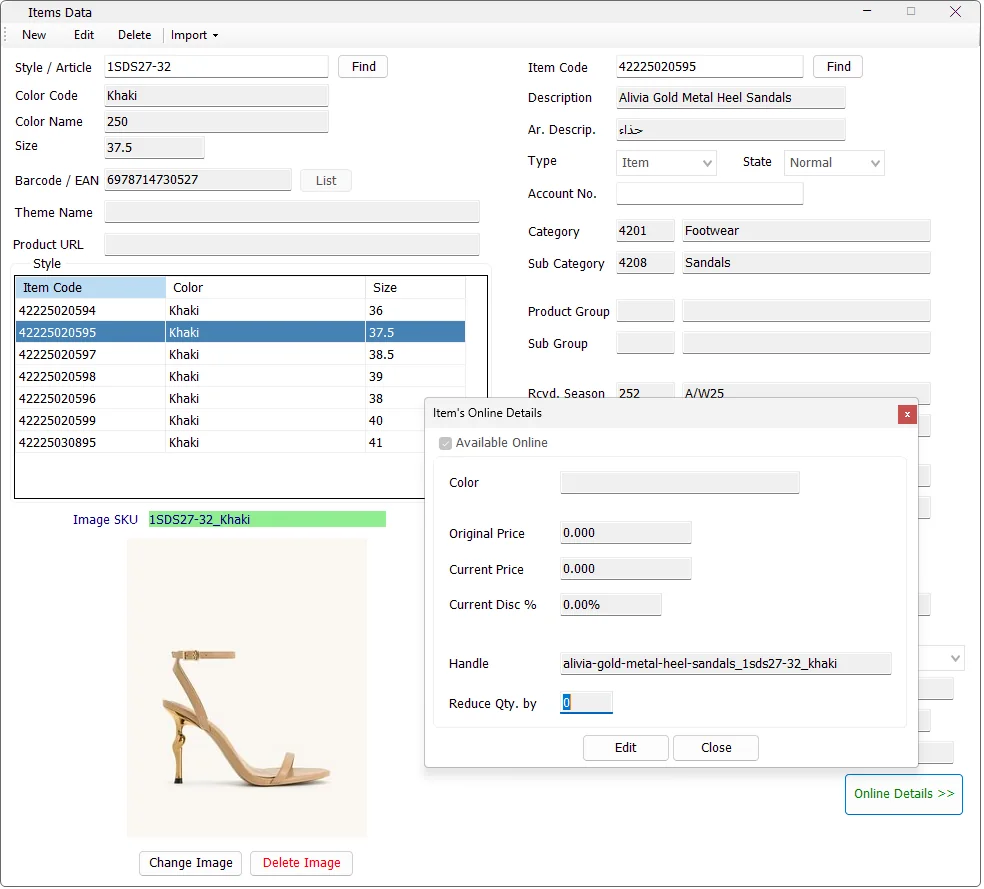
The Online Details window keeps the e-commerce-specific values that can differ from the normal IMS retail item information.
| Field | Purpose |
|---|---|
| Available Online | Marks whether the selected item is available to the online integration. |
| Color | Online color value for the selected Item Code. |
| Original Price | Original online price. |
| Current Price | Current online selling price. |
| Current Disc % | Calculated automatically from Original Price and Current Price when the original price is greater than the current price. |
| Handle | Online product handle associated with the selected Item Code. |
| Reduce Qty. by | Quantity reduction value used by the online item workflow. |
| Save choice | What IMS updates |
|---|---|
| No — selected Item Code only | Updates Available Online, online Color, Original Price, Current Price, Handle and Reduce Qty. by for the selected Item Code. |
| Yes — entire Style | Updates Available Online, Original Price, Current Price and Reduce Qty. by for every Item Code belonging to the Style. |
After saving, IMS records the affected Item Code or Style for the online-update workflow so the change can be processed by the integration service.
The Product URL on the main Items screen is stored at the Style/Color SKU level, matching the same Style_ColorCode structure used by item images.
IMS protects transaction history. An item can be deleted only when it has not already been used in relevant stock, purchasing, sales, depreciation, adjustment or transfer transactions.
If IMS finds previous transaction history, the item is retained and the user is informed that it cannot be deleted.
The Import menu provides administrative bulk-maintenance tools. IMS validates the selected file before committing changes and writes a validation log when the source contains invalid data.
| Import option | Purpose |
|---|---|
| Import Items | Creates items in bulk and can optionally update existing item records. When updating existing items, Item Code, Style, Color and Size are retained. |
| Import Price Changes | Updates current selling price and state in bulk. Files can target an Item Code, a complete Style, or a Style + Color combination. |
| Import Online Prices | Updates online original price, online current price and Online status for item/style selections used by the online integration workflow. |
| Import Images | Imports Style/Color images in bulk from local file paths or HTTP/HTTPS image sources. |
The item-data import validates field lengths and data types, duplicate Item Codes, duplicate barcodes and duplicate Style/Color/Size combinations before saving. If invalid rows are found, IMS creates a -ValidationLog.txt file beside the import source.
When the import encounters Item Codes that already exist, IMS asks whether those existing records should be updated. Identity fields such as Item Code, Style, Color and Size remain unchanged during that update.
The image importer expects at least two tab-separated columns:
| Column | Value |
|---|---|
| SKU | The IMS Style_ColorCode image key. |
| Image Src | A local image path or an HTTP/HTTPS image URL. |
IMS validates duplicate SKUs, confirms that the SKU exists in the item master, compresses the image and creates both the main image and thumbnail. Failed or skipped rows are written to an import error log.
Item maintenance and the Item toolbar follow the logged-in user's manage item data permission. Users without that maintenance permission can still use the screen as allowed by their IMS access policy, but protected New/Edit/Delete/Import and image-maintenance actions are disabled.
The classification fields on Items are maintained as separate IMS masters:
| Item field | Master |
|---|---|
| Category / Sub Category | Manage → Categories |
| Product Group / Sub Group | Manage → Product Groups |
| Age Range | Manage → Age Ranges |
| Gender | Manage → Genders |
| St. Period | Manage → Statistical Periods |
Keeping these values in shared masters is what lets the same classifications be reused consistently by Main Sales, Sell Through and Purchasing reports.
Manage → Sale Seasons can temporarily apply a Sale price to selected Item Codes. While a Sale Season is active, IMS uses the policy's sale price as the current selling price and places the affected merchandise in the Sale item state. The Sale Season also controls whether the item should return to its original/full price when the policy ends.
Manage → Special Offers can target merchandise by exact Item Code, Style or Style/Color. The offer importer resolves those values against the Item master before saving the promotion.
A normal Special Offer does not replace the Item master definition. The From Price List option stores offer-specific promotional prices separately, while Sale Seasons are the module used for scheduled item markdown prices that change the current sale price/state.
Find the Style and use the Style grid to switch between individual Item Codes.
Edit one variant, choose Apply to Style and use Price Only when the change should affect style pricing only.
Add one Style/Color image and IMS makes it available to all Size variants of that Style and Color.
Use Import Items for validated bulk creation and Import Price Changes or Import Images for specialized updates.
This screen is intended for normal merchandise items. Non-merchandise Service Items are maintained separately in Manage → Service Items. Both belong to the IMS item master, but Service Items use a simplified definition and are identified by Type = Service.