
Label Printing
Label Printing prepares item labels in bulk and previews them before printing. Labels can be built from an Item Code or Barcode, an entire Style, the Style/Color identified by a scanned barcode, an imported list, or the positive stock balance of a selected store.
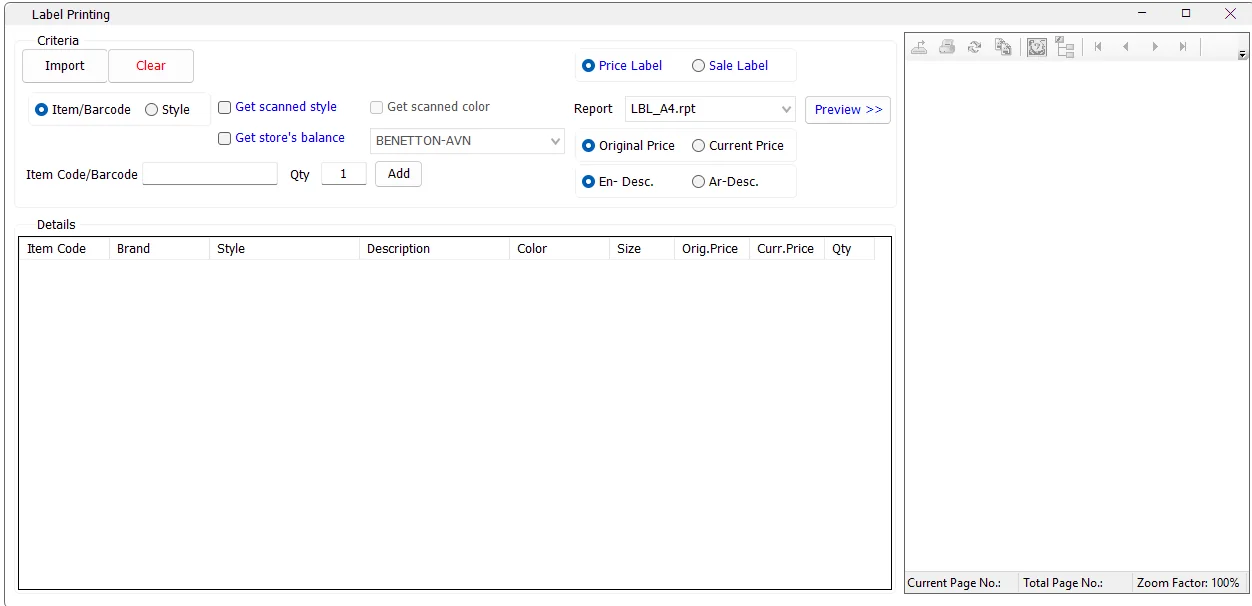
Choose Price Label or Sale Label
| Label type | Behavior |
|---|---|
| Price Label | Uses the installed LBL_ label layouts. The user can choose Original Price or Current Price and English or Arabic description. |
| Sale Label | Uses the installed LBLS_ sale-label layouts. Price and description selectors are disabled because the selected sale-label report controls its own layout/content. |
The Report list is populated from the label report layouts installed with IMS. Click Preview >> after items have been prepared to render the selected layout in the preview pane.
Add items to the label list
There are several ways to build the label list.
Item / Barcode
Select Item/Barcode, enter the quantity, then scan or type an Item Code, the item's primary barcode or an alternate barcode. IMS loads the matching item and displays Brand, Style, Description, Color, Size, Original Price and Current Price.
Style
Select Style when the entered value is a Style rather than an individual item. IMS loads the item variants belonging to that Style, with the entered Qty applied to each newly added item.
Get scanned style
Enable Get scanned style when the scanned value is a barcode but the objective is to label the complete Style. IMS first identifies the Style represented by that barcode and then loads all items in the Style.
While Get scanned style is enabled, Get scanned color becomes available. Enable it to restrict the result to the scanned item's Style + Color combination instead of every color in the Style.
Generate labels from a store's stock balance
Enable Get store's balance and select a Store when the number of labels should match the current positive on-hand quantity in that location.
In this mode the manual Qty field is disabled. For every matched item IMS reads the selected store's stock balance, uses that positive balance as the label quantity, and skips items whose store balance is zero or negative.
This can be combined with Style/scanned-Style selection to prepare labels only for variants that are actually available in the selected store.
Label details
| Column | Meaning |
|---|---|
| Item Code | IMS SKU/product number. |
| Brand | Brand name; IMS falls back to the supplier name when required. |
| Style | Item Style. |
| Description | Item description. |
| Color | Item Color code. |
| Size | Item Size. |
| Orig. Price | Original retail price. |
| Curr. Price | Current retail price. |
| Qty | Number of labels to prepare for that Item Code. |
The Details header shows the total number of labels represented by all rows.
Price and description options
For Price Labels, choose the information required by the selected template:
| Option | Result |
|---|---|
| Original Price | The label report is told to use the item's original price. |
| Current Price | The label report is told to use the current selling price. |
| En-Desc. | The label report is told to use the English description. |
| Ar-Desc. | The label report is told to use the Arabic description. |
Import a label list
Import reads a tab-delimited text file with a header row. Label Printing supports three practical layouts:
| Layout | Example |
|---|---|
| Item Code + Qty | Prodn[TAB]Qty |
| Style + Qty | Style[TAB]Qty |
| Style + Color + Qty | Style[TAB]Color[TAB]Qty |
Qty must be a whole number. Item Code values are limited to the supported IMS Item Code length, while Style/Color values are validated against their supported text length. If validation errors are found, IMS writes a -ValidationLog.txt file beside the imported text file with the row number and error message.
Preview and print
- Build the label list manually or through Import/store balance.
- Select Price Label or Sale Label.
- Select the installed Report layout.
- For Price Labels, choose Original/Current Price and English/Arabic description.
- Click Preview >>.
- Review the Crystal Reports preview on the right.
- Use the Crystal Reports viewer's print controls to send the labels to the configured printer.
IMS prepares one printable label instance for each unit of Qty. For example, an item with Qty 12 contributes twelve labels to the preview.
Clear the working list
Click Clear to remove the current item rows and reset the preview. Closing the Label Printing screen also clears the temporary label-printing records created for that workstation/session.
Common workflows
| Requirement | Recommended setup |
|---|---|
| Print one or several labels for one SKU | Item/Barcode → enter Qty → scan/type item → Add. |
| Print the same Qty for every variant in a Style | Style → enter Style and Qty → Add. |
| Scan one item and label every variant of its Style | Enable Get scanned style → scan barcode → Add. |
| Scan one item and label only the same Style/Color variants | Enable Get scanned style + Get scanned color → scan barcode → Add. |
| Print exactly the current positive stock in one store | Enable Get store's balance → choose Store → select/scan Style or items. |
| Prepare a large predefined label batch | Use Import with Item/Qty, Style/Qty or Style/Color/Qty. |