
Users Activity
Users Activity is the IMS system audit viewer. The window title appears as System Log, and it lets authorized administrators review recorded user actions by date, user and audited system module.
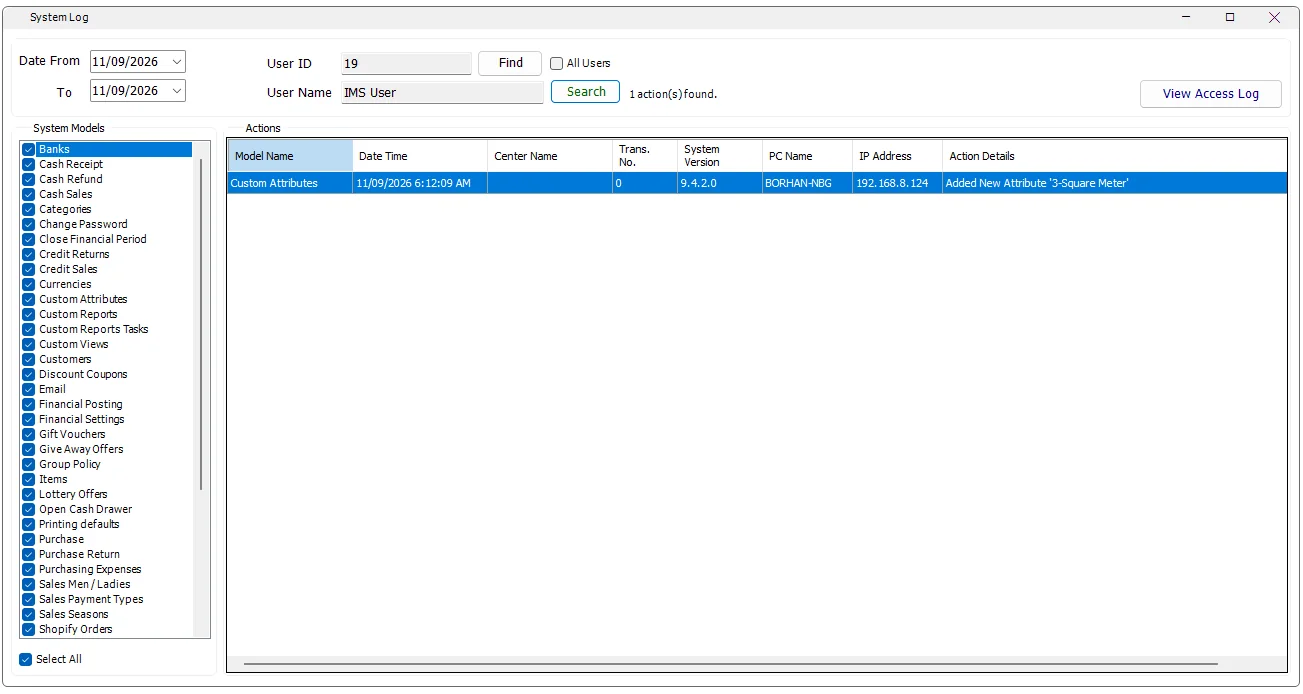
Default view
When the screen opens, IMS selects the currently signed-in user, checks all available System Models and immediately loads that user's activity for the selected date range.
The available System Models are loaded from the IMS audit-model catalog, so the list reflects the areas currently configured for activity logging.
Search filters
| Filter | Purpose |
|---|---|
| Date From / To | Restricts activity to the selected date range, including the full From and To dates. |
| User ID / User Name | Shows activity for one IMS user. Use Find to select another user. |
| All Users | Removes the single-user filter and shows matching activity for all IMS users. The User Name column is then included in the results. |
| System Models | Restricts the results to selected audited modules such as Banks, Cash Sales, Categories, Custom Reports, Items, Purchases, Sales Seasons, Shopify Orders and other configured areas. |
| Select All | Checks or clears the complete System Models list. |
System Models
The System Models list is not a hard-coded menu list in this screen. IMS loads it from the ModelsToAudit catalog and associates each model name with its audit code.
When Select All is enabled, no model restriction is added to the query. When only specific models are checked, IMS limits the activity search to those audit codes.
Action results
The Actions grid is read-only and is sorted with the newest matching activity first.
| Column | Meaning |
|---|---|
| Model Name | The audited IMS module or business area. |
| Date Time | Date and time the action was recorded. |
| Center Name | The Store/Center associated with the action when one was recorded. |
| Trans. No. | Related transaction/document number when applicable. |
| System Version | The IMS application version recorded with the action. |
| User Name | Shown when searching All Users so each action can be attributed to its IMS user. |
| PC Name | Workstation name recorded for the action. |
| IP Address | Workstation/POS IP address recorded with the action. |
| Action Details | Human-readable description of what the user or process did. |
The screen also displays the number of matching actions found for the current search.
Review one user's activity
- Set the required Date From and To.
- Leave All Users cleared.
- Click Find and select the required IMS user.
- Select the System Models to include.
- Click Search.
- Review Action Details together with Center, transaction number, IMS version, PC Name and IP Address.
Review all users
Enable All Users to clear the selected User ID/User Name and search all users. IMS then shows the additional User Name column in the Actions grid so each event can be attributed to its account.
Turning All Users off restores the currently active IMS user as the selected account.
Select specific audited areas
Clearing a System Model removes it from the next search. Selecting or clearing models resets the current results until a new matching search is performed. When all models are selected again, IMS automatically returns to an unrestricted model search.
View Access Log
Click View Access Log to open the separate IMS Access Log window. This button provides access to that related log viewer from the Users Activity screen.
How this fits IMS administration
Many IMS modules write descriptive entries to the activity log when users create, modify, delete, post, configure or execute controlled operations. Users Activity provides the administrative view for reviewing those recorded events after the fact.
It complements Group Policies and Users Accounts: those screens define what a user may do, while Users Activity helps administrators review what was recorded as done.