
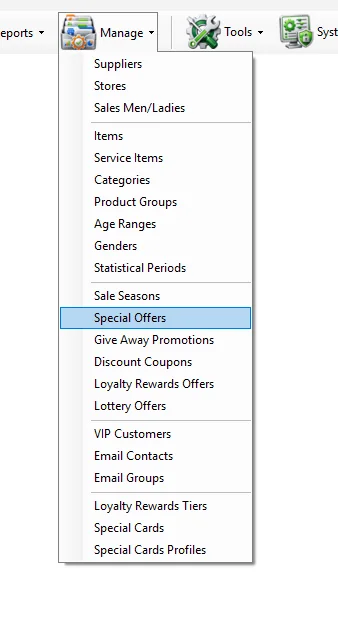
Manage Special Offers
Special Offers is the IMS promotion-rule editor. It defines what benefit the customer receives, when the offer is valid, which stores and client categories can use it, and which merchandise participates. IMS supports percentage discounts, free-item promotions, cash back, fixed-price bundles and step/tiered discounts.
How a Special Offer is structured
Every offer starts with the same core information: ID, Name, Start and End. The center section changes according to the selected offer type, while the Apply On area controls Stores, Client Categories and Items.
The five offer types
| Offer Type | Rule | Typical use |
|---|---|---|
| Give Discount | Give a percentage discount to eligible items, or apply the discount on the total invoice amount. It can also use a special price list instead of one percentage. | “15% off selected items”, “10% off the invoice”, or item-specific promotional prices. |
| Give Free Item | Buy N → Get M free items according to the selected merchandise scope. | Buy 3 Get 1. |
| Cash Back | Define one or more purchase thresholds and the cash-back/voucher value to grant. The benefit can be a fixed amount or a percentage. | Spend 50 KD → receive 10 KD. |
| Bundle | Buy N → For amount, giving a fixed bundle total for the qualifying quantity. | Buy 3 selected items for 29 KD. |
| Step Discount | Supports quantity-based/tiered discounts, including Buy/Get-style tiers, or a List A → List B rule. | Buy 2 → 15%; Buy 3 → 20%, or buy items from List A and discount items from List B. |
Common offer controls
| Control | Purpose |
|---|---|
| On total invoice amount | Available for Give Discount. The offer is evaluated on the receipt total rather than on a selected merchandise list; item selection is disabled while this option is active. |
| On items sold on full price Only | Limits the promotion to merchandise currently sold at full price. |
| Override item's discount only if it is less than offer | Allows the offer to replace a smaller existing item discount while leaving a better discount unchanged. |
| Force disable client's special discount | Prevents the customer's special/client discount from being combined with this offer. |
| Apply if receipt's total amount exceeded | Optional minimum receipt amount required before the offer can apply. |
| Round Net Amount | Optional rounding value stored with the promotion and used by the POS offer-processing logic. |
Give Discount
Select Give Discount and enter the discount percentage in the Get … Off field. The rule can target selected merchandise, all items, or the total invoice amount.
If On total invoice amount is enabled, IMS automatically treats the offer as applying to all items and disables merchandise targeting for that policy.
From Price List
A Give Discount offer can use From Price List. In this mode the import file provides an offer-specific selling price instead of one common percentage. IMS stores those promotional prices separately from the Item master.
| Selection mode | Required file columns after the header |
|---|---|
| Itemcode | Item Code · Special Price |
| Style | Style · Special Price |
| Style - Color | Style · Color · Special Price |
When From Price List is selected, All Items, full-price-only and override-discount behavior are disabled because the imported list itself defines the eligible products and their offer prices.
Give Free Item
This is the classic Buy N Get M promotion. Enter the qualifying quantity in Buy and the free quantity in Get, then define where the promotion applies.
Bundle
Bundle uses the same qualifying-quantity idea but replaces “Get free” with a fixed total amount: Buy N For amount.
Step Discount
Step Discount has two operating styles.
| Mode | How it works |
|---|---|
| Standard List A / List B | Discount a specified number of items from List B when the receipt contains the required number of items from List A. This mode uses Item Code lists. |
| As buy get | Build a Discounts Policy made of quantity → percentage tiers. For example, Buy 2 → Get 15%, Buy 3 → Get 20%. |
For the standard List A/List B version, the import file contains two Item Code columns after the header: List A and List B. IMS validates both lists against the Item master.
For As buy get, the Discounts Policy list can contain multiple quantity/percentage entries. The percentage option is fixed for these tier definitions.
Cash Back
Cash Back is the most specialized mode because it can issue a value for later use or apply the benefit immediately to the current receipt.
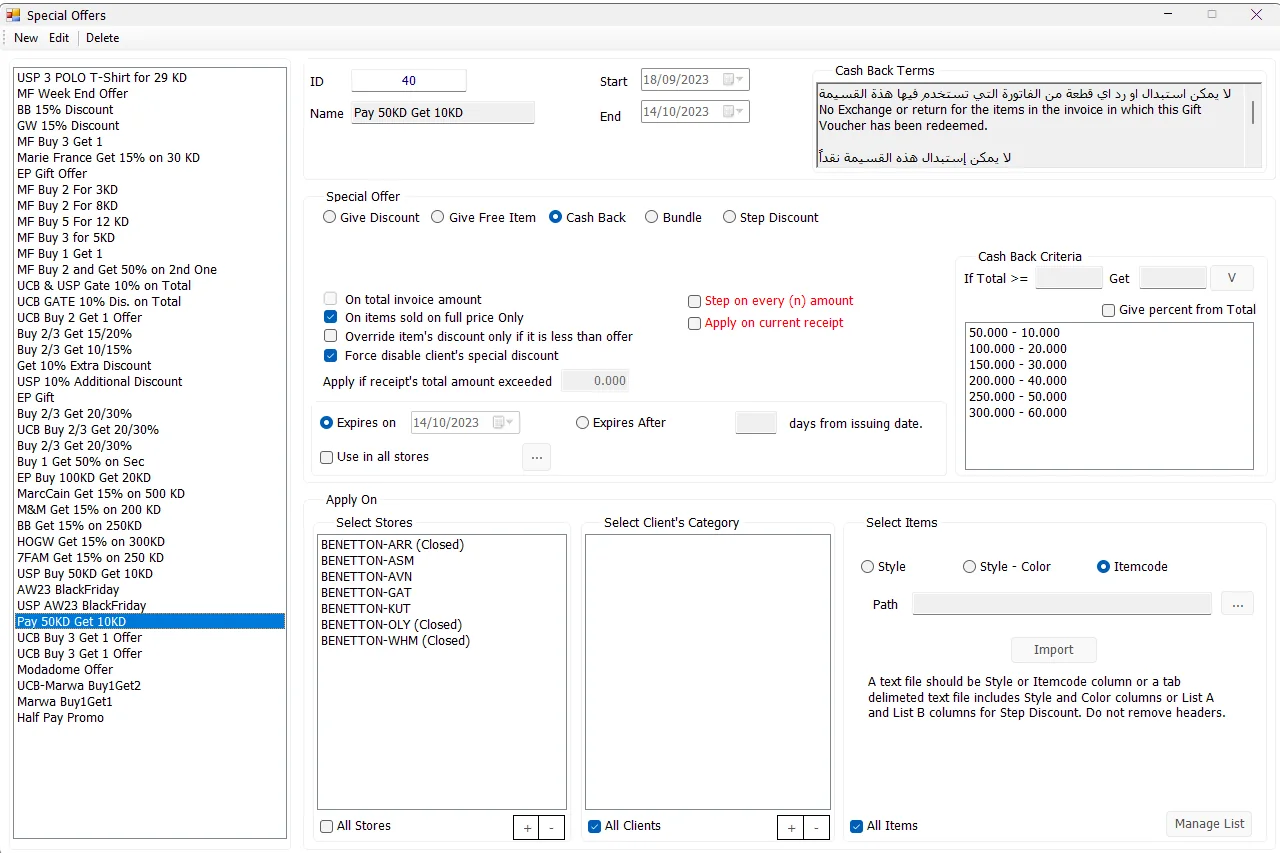
Cash Back Criteria
Each criterion pairs a qualifying total with a benefit. The benefit can be a fixed currency value or, when Give percent from Total is selected, a percentage.
Use Step on every (n) amount when the same criterion should repeat for each qualifying amount step. In this mode IMS keeps one base criterion rather than a multi-threshold table.
Apply on current receipt
Select Apply on current receipt when the Cash Back benefit should be used immediately instead of relying on a later voucher. In this mode the separate Cash Back Terms area is hidden and IMS forces the client's special discount off for the offer.
Voucher expiry and redemption stores
For a normal Cash Back voucher, choose either:
- Expires on — a fixed expiry date.
- Expires After — a number of days from the voucher issuing date.
Use in all stores controls where the resulting Cash Back voucher can be redeemed. If it is not selected, use the adjacent … button to choose the redemption stores.
The Cash Back Terms box stores the text printed/associated with the Cash Back policy, such as return or exchange restrictions.
Apply On: Stores, Clients and Items
Every Special Offer has three independent scope areas.
| Scope | Options |
|---|---|
| Stores | Select specific stores with +/−, or use All Stores. All Stores loads the active retail stores eligible for normal offer application. |
| Client's Category | Select one or more customer categories, or use All Clients. |
| Items | Select Style, Style - Color or Itemcode, import a text file, or use All Items. |
Item selection and import files
The text-file importer always treats the first row as a header. The normal layouts are:
| Mode | Columns after the header | Result |
|---|---|---|
| Itemcode | Item Code | Targets those exact SKUs. |
| Style | Style | IMS expands each Style to the Item Codes that currently belong to it. |
| Style - Color | Style · Color | IMS expands each Style/Color combination to matching Item Codes. |
| Step Discount: List A/B | List A Item Code · List B Item Code | Creates the qualifying-item and discounted-item lists used by the standard Step Discount rule. |
| Give Discount: From Price List | See the price-list formats above | Creates offer-specific prices for the imported merchandise. |
After import, IMS validates the source values against Manage → Items and shows how many matching Item Codes were loaded. Manage List opens the item-list maintenance window for an existing saved offer.
Overlapping offers
Before saving, IMS checks the selected stores for other running Special Offers. Non-combinable rules are blocked so a store does not receive conflicting promotion logic.
In particular, IMS blocks combinations involving Cash Back, Give Discount, or an offer configured for All Items when another running Special Offer already exists for the same store scope.
Create or edit an offer
- Click New. IMS assigns the next Offer ID and initially selects All Stores, All Clients and All Items.
- Enter the Name, Start and End dates.
- Select the offer type and configure its values.
- Set any optional controls such as full-price-only, client-discount handling, minimum receipt total or rounding.
- Choose the Store, Client Category and Item scope.
- For Cash Back, complete the criteria, expiry/current-receipt behavior and voucher redemption stores.
- Click Save. IMS validates required scopes, dates, offer values and conflicting store offers before saving.
To modify an existing offer, select it, click Edit, make the changes and click Save. Click Cancel to reload the last saved version.
Setting an existing offer's End Date before today is treated as stopping the offer and IMS asks for confirmation.
Delete an offer
An offer can be deleted only while it has never been applied to a sales transaction. IMS checks the transaction history for the Offer ID before allowing deletion.
If the offer has already been used, IMS keeps the definition and displays that the offer cannot be deleted because it has been applied on sales transactions. This protects the historical transaction reference.
Special Offers versus Sale Seasons
| Sale Seasons | Special Offers | |
|---|---|---|
| Best for | Scheduled merchandise markdowns with an explicit After price per Item Code. | Conditional POS promotions such as percentage discounts, Buy/Get, bundle, Cash Back and tiered rules. |
| Item pricing | Can set the item's current sale price/state for the active season. | Normally applies the promotion during the transaction. From Price List stores offer-specific prices separately from the Item master. |
| Targeting | Item list + Statistical Period + dates. | Dates + Stores + Client Categories + Items, with optional receipt-level conditions. |
| Use when | “These SKUs are on sale at these prices for this period.” | “If the receipt/customer/items meet these conditions, give this benefit.” |
Effect on reports
When a Special Offer is applied, the sales transaction retains the Offer ID. Sales reports therefore show the financial result that was actually posted — quantities, full amounts, discounts, net sales and related KPIs — rather than recalculating the promotion definition later.
Permissions
New, Edit and Delete are controlled by the IMS Manage Special Offer access policy. If the user does not have this right, the maintenance actions are disabled.