
Manage Product Groups
Product Groups provide a second hierarchical merchandise classification in IMS. A Product Group can contain multiple Sub Groups, allowing merchandise to be analyzed independently from its Category/Sub Category classification.
Open the screenManage → Product Groups
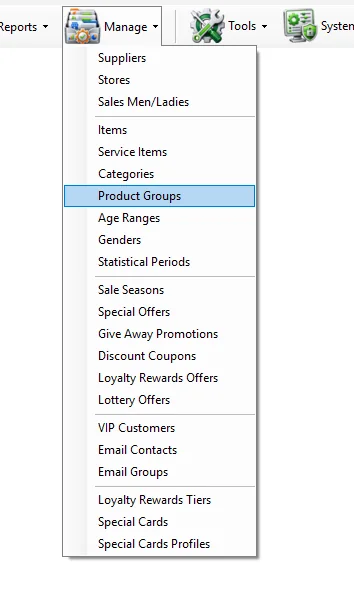
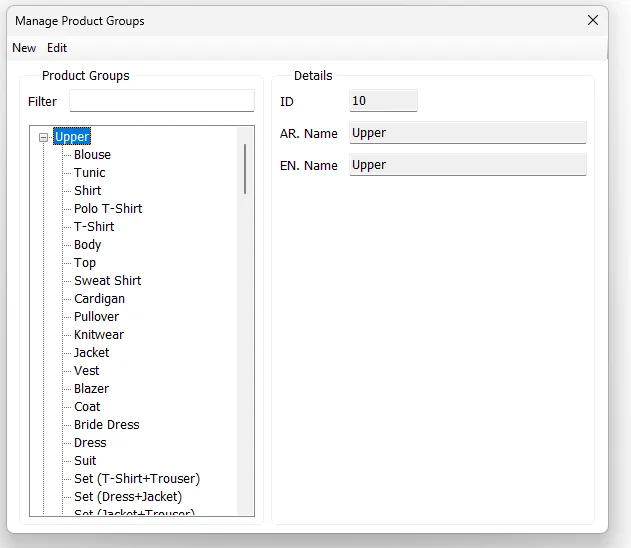
Product Group and Sub Group hierarchy
| Level | Meaning |
|---|---|
| Product Group | Top-level product grouping such as Upper. |
| Sub Group | Detailed product type beneath the Product Group, such as Blouse, Shirt, Jacket or Dress. |
Add a Product Group or Sub Group
- Click New.
- Enter a unique ID and the required English Name.
- Enter the Arabic Name when applicable.
- Leave Parent ID blank for a Product Group, or enter the Product Group ID when creating a Sub Group.
- Click Save.
Edit the hierarchy
Use Edit to change names or Parent ID. Moving a classification between Product Group and Sub Group also keeps the related Item records aligned with the updated hierarchy.
Relationship with Items
Manage → Items stores both Product Group and Sub Group. Selecting a new Product Group resets Sub Group so the child always belongs to the selected group.
Where Product Groups are used
↗
Main Sales ReportGroup and Sub Group can be used as criteria and grouping dimensions.
↗
Sell Through ReportAnalyze received, sold and on-hand merchandise by Group/Sub Group.
↗
Purchasing ReportAnalyze purchasing activity by Product Group/Sub Group.